How to Create and Run a WELE Course

On this page
WELE Course is a new feature of WELE that excellently solves the problem of managing content and classes, while also enabling the creation of advanced features that WELE Class did not previously have, such as creating quizzes, vocabulary, exercises, as well as creating certificates for those who complete the course.
In WELE Course:
- Modules will contain all the content that needs to be used
- WELE Class is for managing a specific class
With the same content that a teacher has uploaded to WELE Course, the teacher can create many different Classes with assignments taken from the Course's modules. This saves time on uploading content and allows it to be reused many times for different classes.
I. Creating a Course
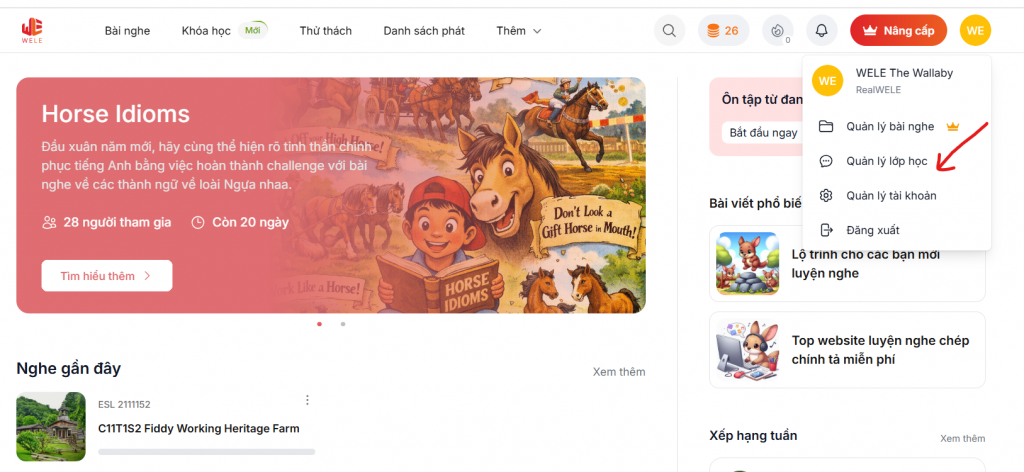
To access the course management interface, select your profile and press the "Manage classes" button
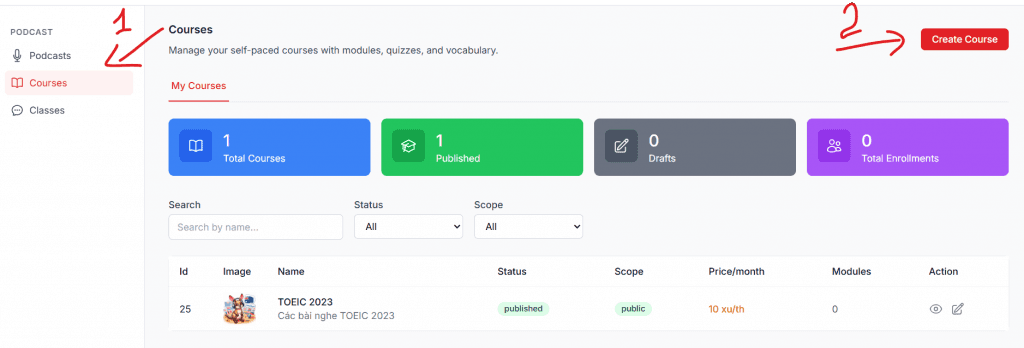
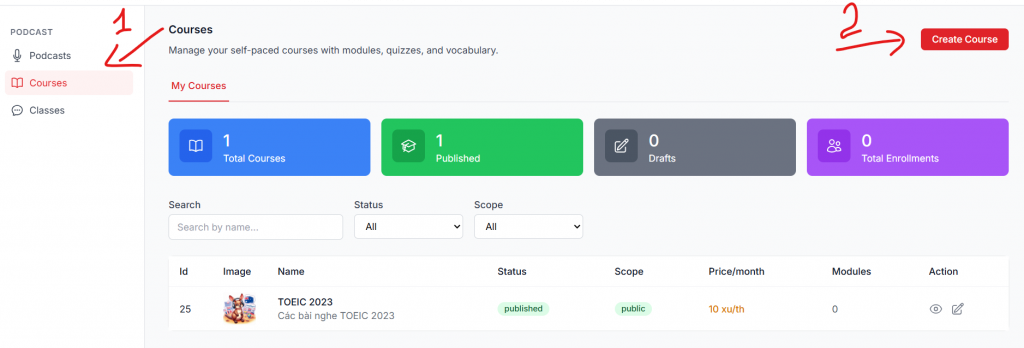
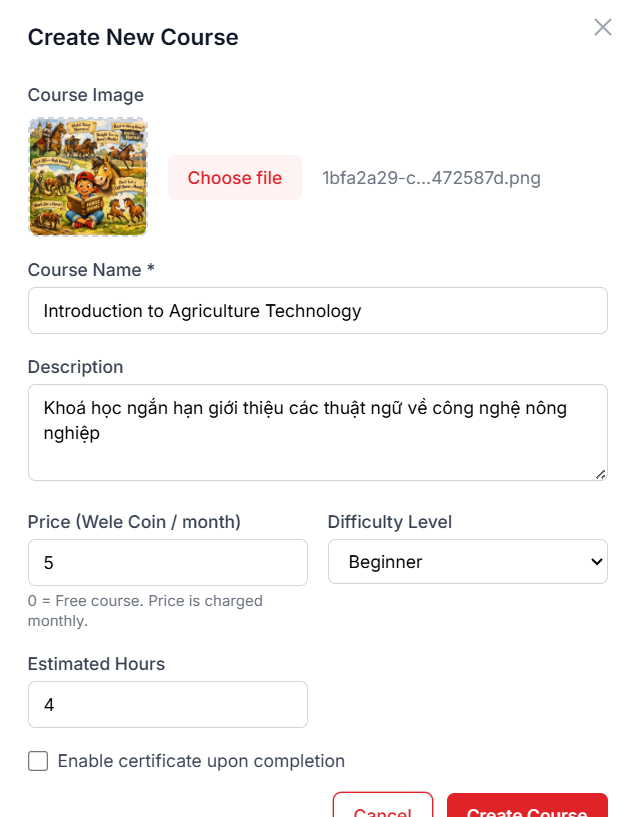
To create a new course, press the "courses" tab, and then choose "create course"
Fill in the necessary information about the course (fields marked with * are required); the price of the course can be set in WELE Coins or charged in VND (this feature will be developed later).
Note: WELE Coins are very easy to earn — just by submitting listening assignments or updating your profile, you can easily earn coins)
- When you select "Enable certificate upon completion", participants will receive a cert (this feature is under development)
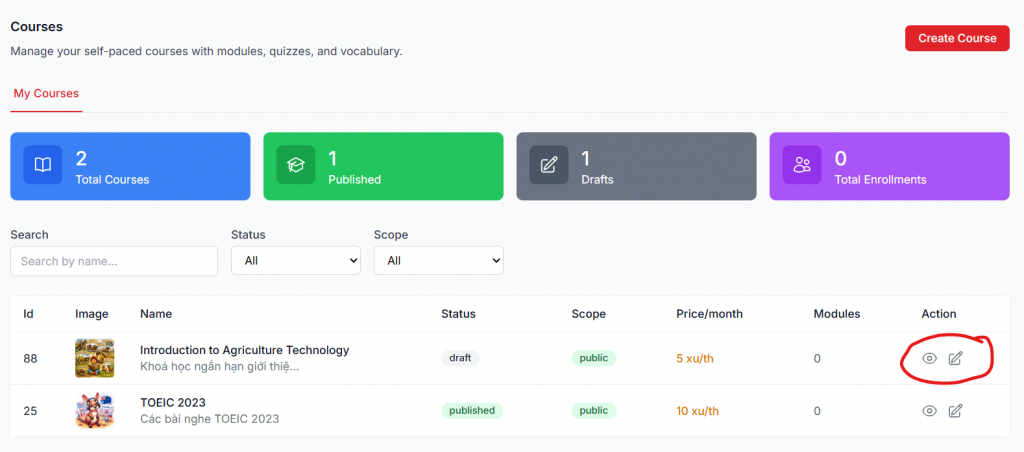
After creating a course, its status is draft; once you've finished setting up the course, you can press the pencil icon to switch it to published status.
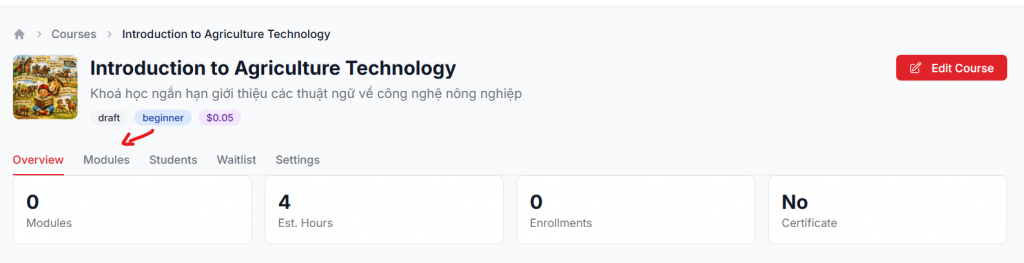
To add content to the course, press the eye icon
Creating a Module (within a Course)
Previously, teachers using WELE Class used Assignment to select listening exercises; with the new feature, Modules will be where you select both listening exercises and assignments
Go into the course, select Add Modules > Add Items > Select Podcast and find the podcast you want to add
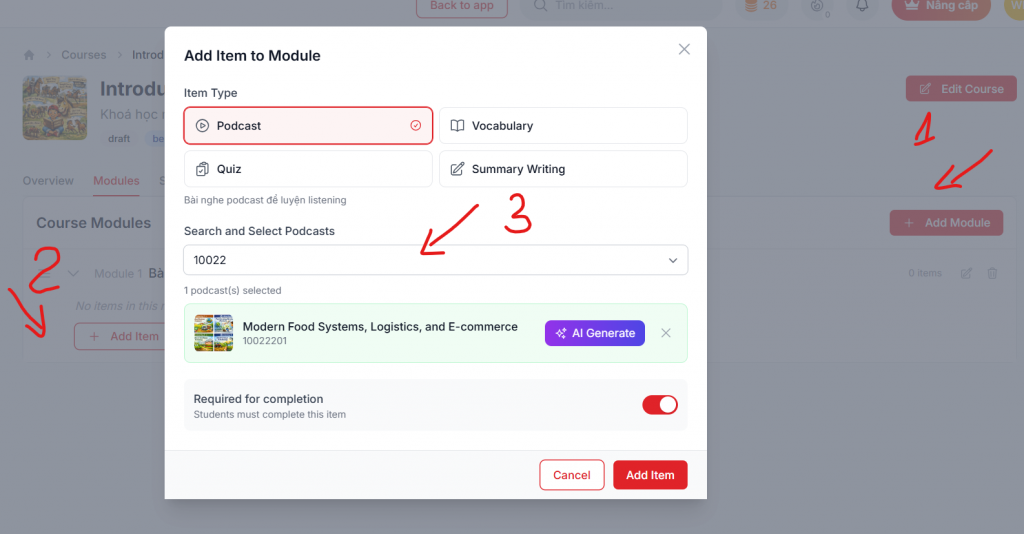
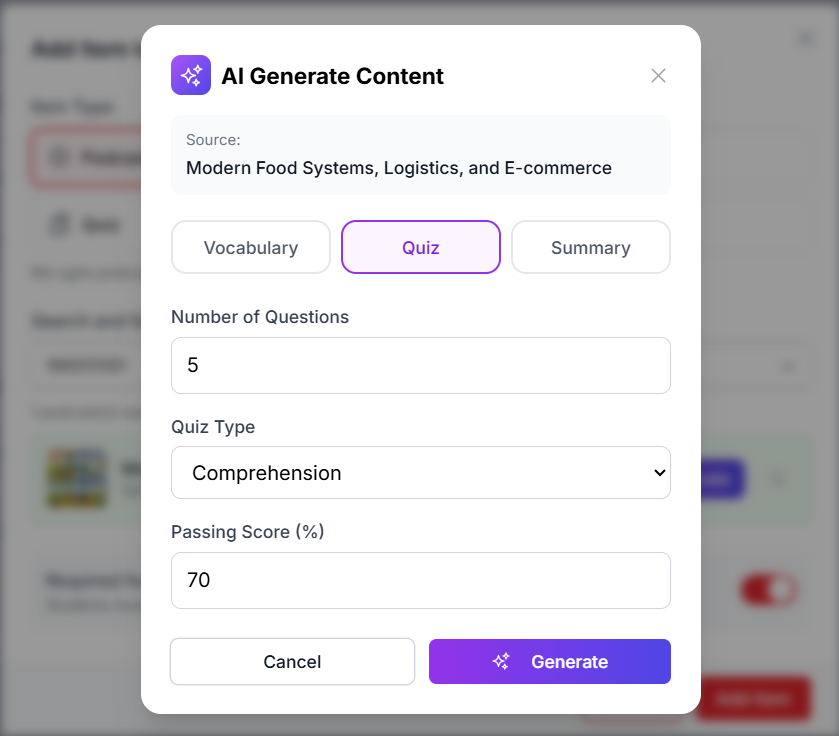
After you add the podcast, you can add Vocab, Quiz, and Summary sections manually by opening the corresponding tabs, or press the AI Generate button to create them as shown below
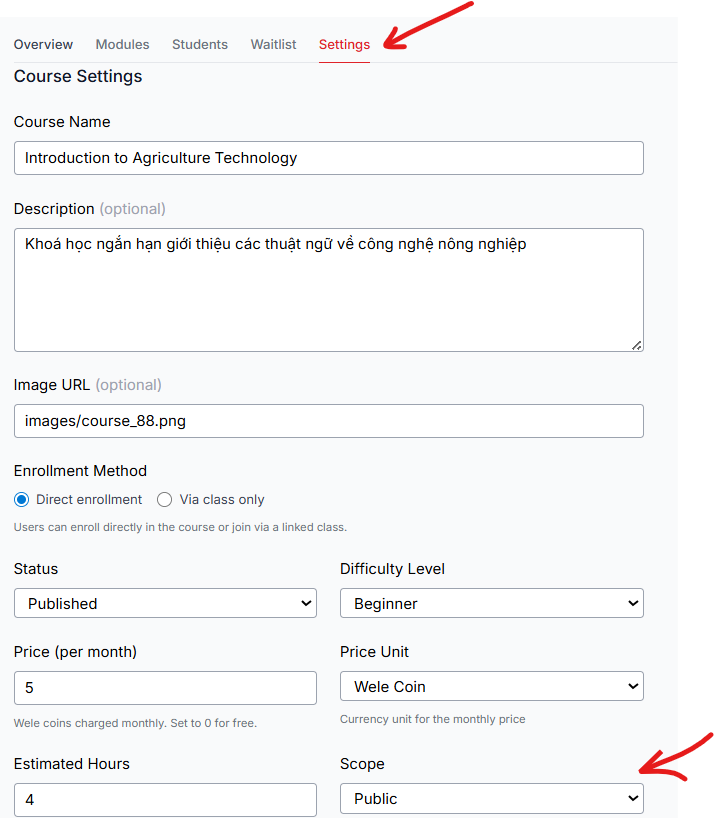
Now, the course has appeared on the WELE website https://wele-learn.com/vi/courses/88/introduction-to-agriculture-technology for everyone to join (there will be no specific deadline; anyone who completes the requirements will have completed the course)

Note: for courses whose content is confidential (for example, specific exercises a teacher creates for their class that they don't want other WELE users to see), the teacher should set the course's scope to private, so that normal WELE Users won't be able to see the content
II. Creating a Class
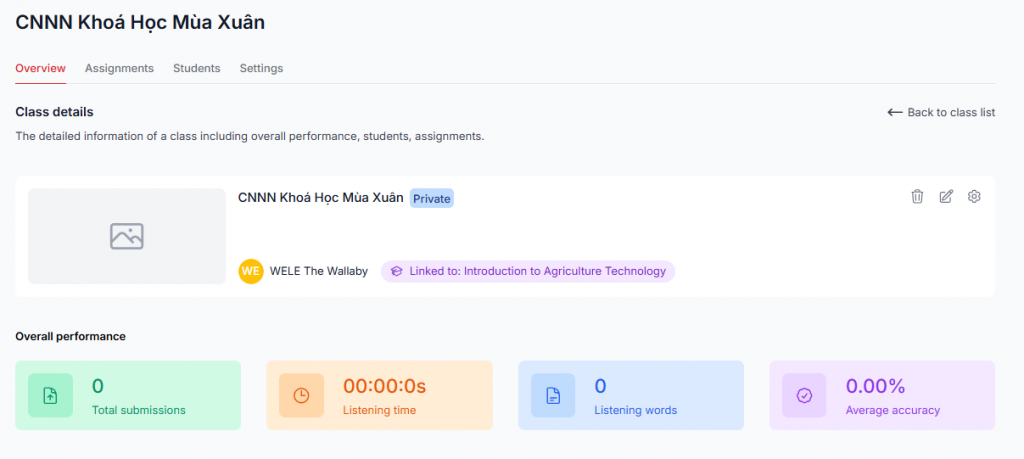
To create a Class, go back to the first page and press Create Class
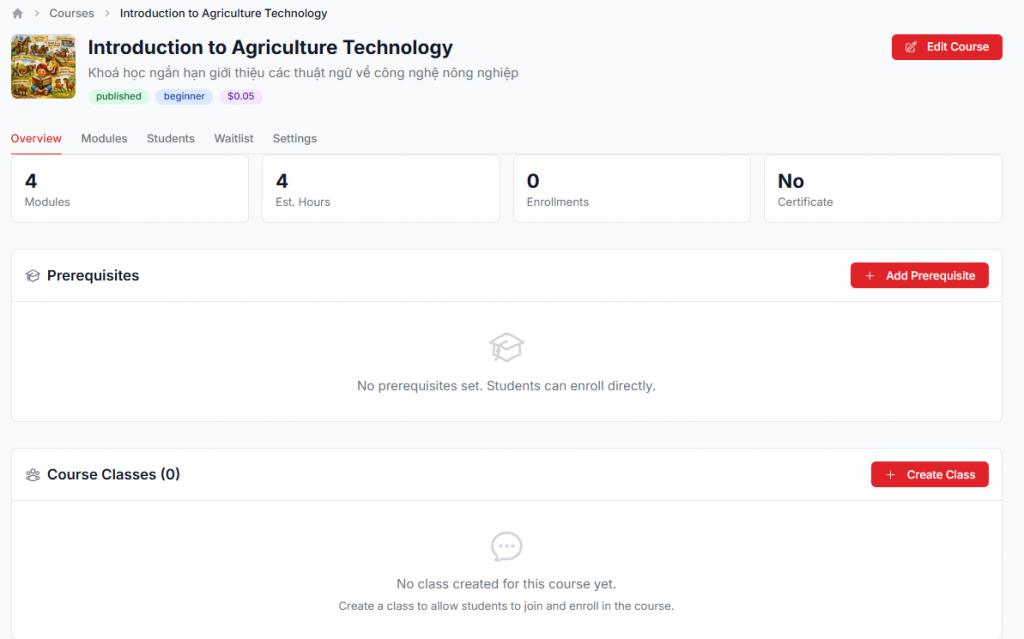
As explained above, Class is for managing a specific number of students, and comes with a deadline
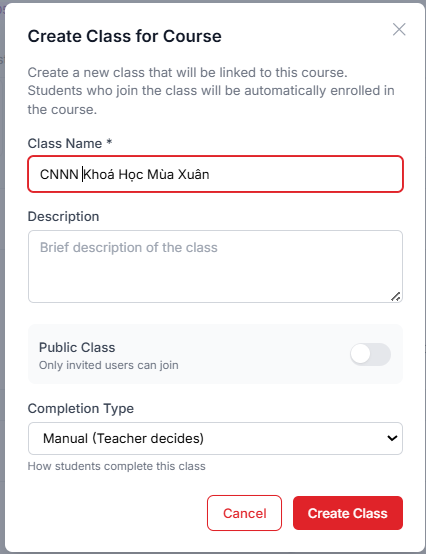
Just like Course, Class also has the option to be public or private; most of the time, classes are created as private, to serve the teacher's needs
Creating an Assignment (within a Class)
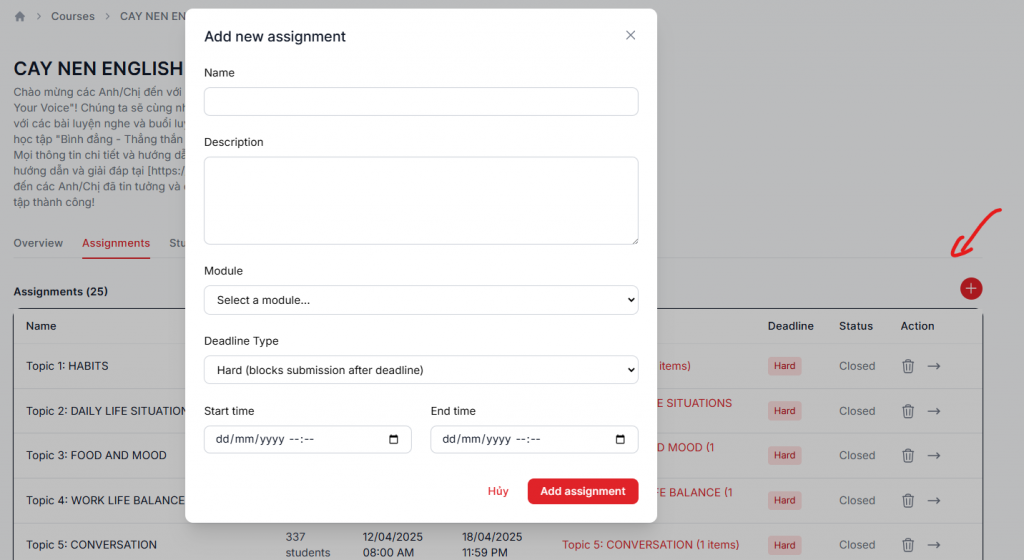
Press the Assignment tab then press the + on the right side to create an Assignment, select the module prepared above, and choose the type of Deadline.
If you select hard deadline (suitable for schools), students will not be able to submit after the deadline has passed; with soft deadline (suitable for students who are already working), students can still submit after the deadline has passed
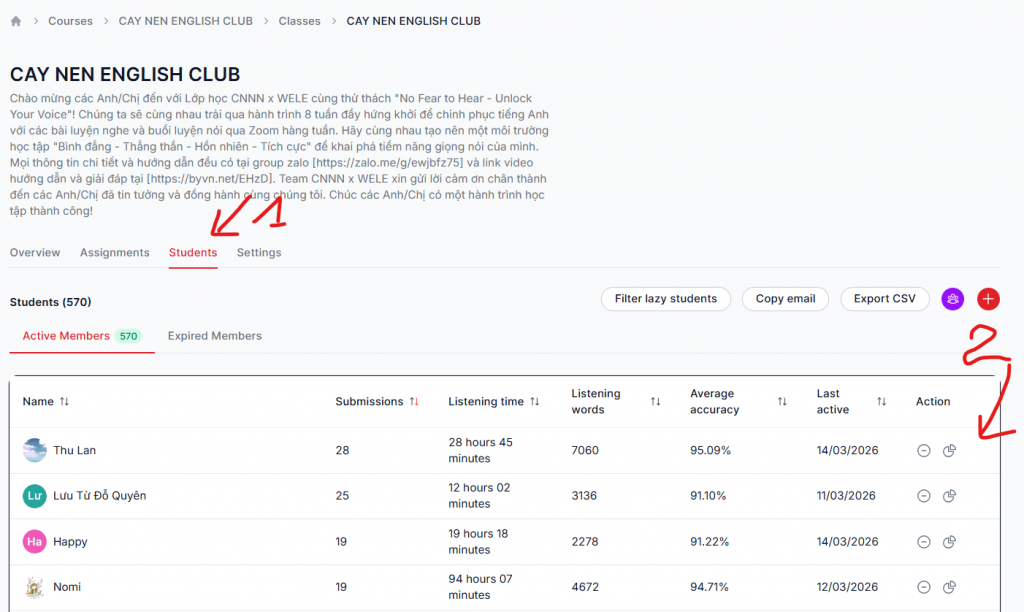
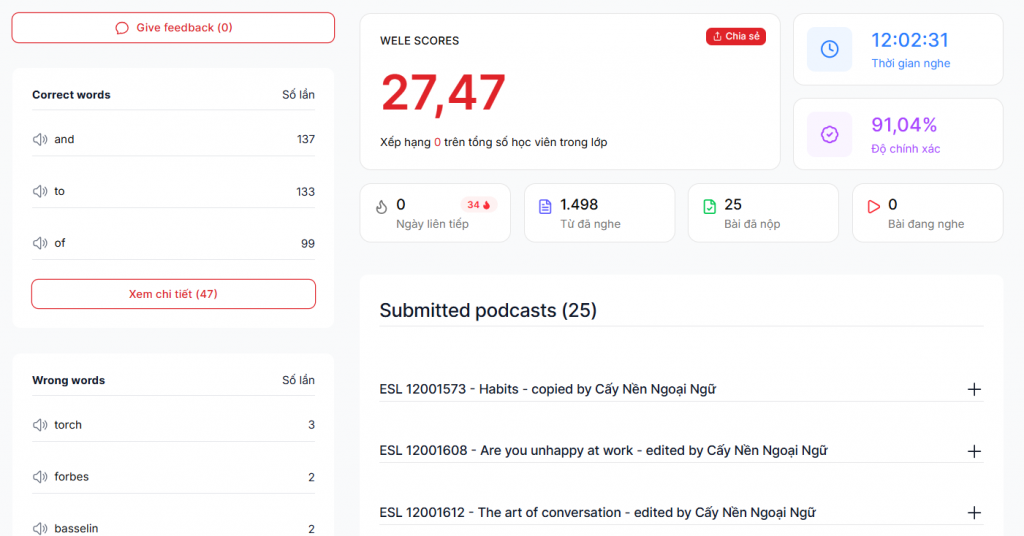
Go to the students tab to get a report on students' submissions, and go into detail (the second arrow) to view details as well as write feedback for students
If you have any questions about the WELE course feature, you can join the teachers' group here https://zalo.me/g/kxxizj673
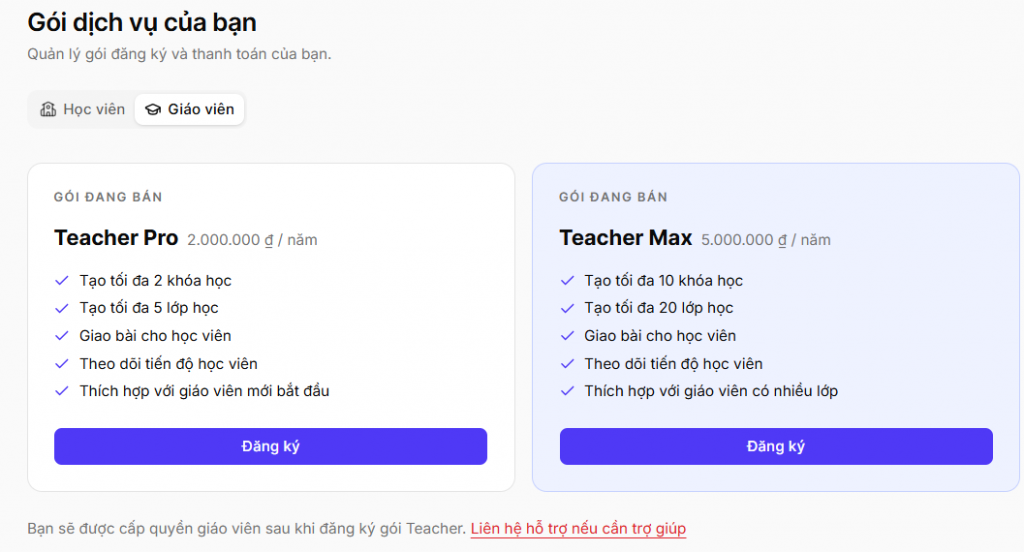
The WELE Course feature will be activated after you pay the fee at the website link https://app.wele-learn.com/user/plans